
Introducing SmartSupply in SupplyStream
Reordering the same supplies every week or month shouldn’t require starting from scratch every time. With SmartSupply, you can build an order once, save it as a reusable quote, and either place it manually whenever you need it or schedule it to be ordered automatically.
Whether you’re ordering breakroom snacks, office supplies, or routine clinical items, SmartSupply helps reduce repetitive work, improve consistency, and ensure you never forget recurring purchases.
Try It Yourself
Click through SmartSupply step by step in our interactive tutorial, then follow along with the guide below.
Tutorial not loading? Open it in a new tab.
Step 1: Build Your Order
Just like creating a one-time order or a supply list, begin by adding all of the items you want to purchase to your cart.
Once your cart is complete:
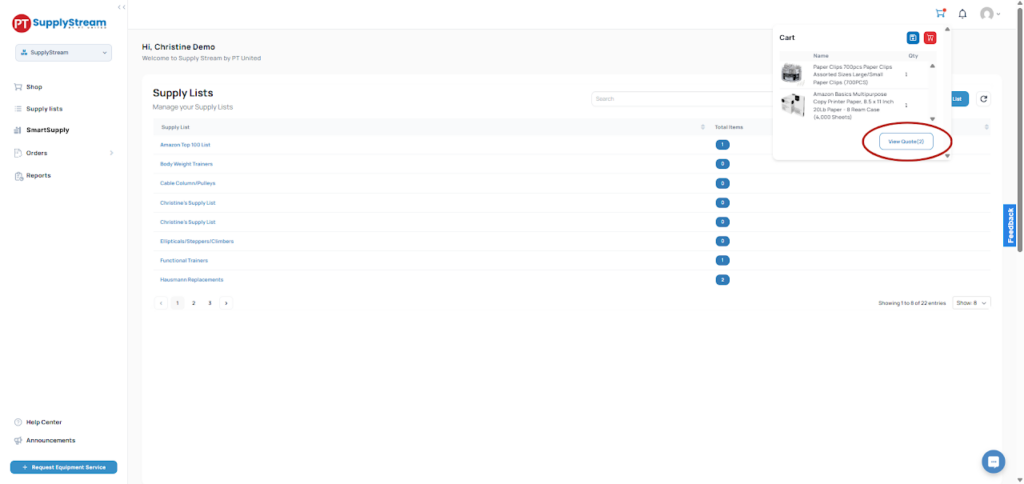
- Open your Cart.
- Click View Quote.
Step 2: Review and Save Your Quote
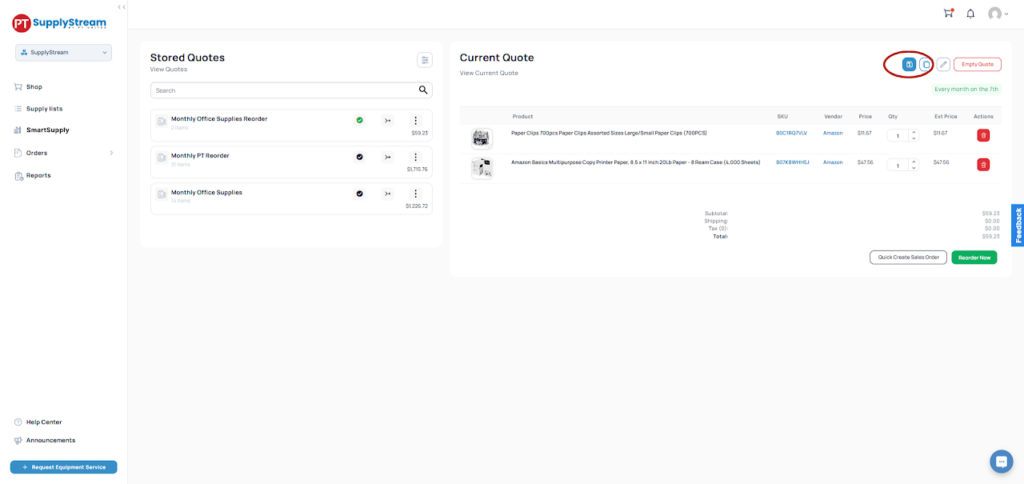
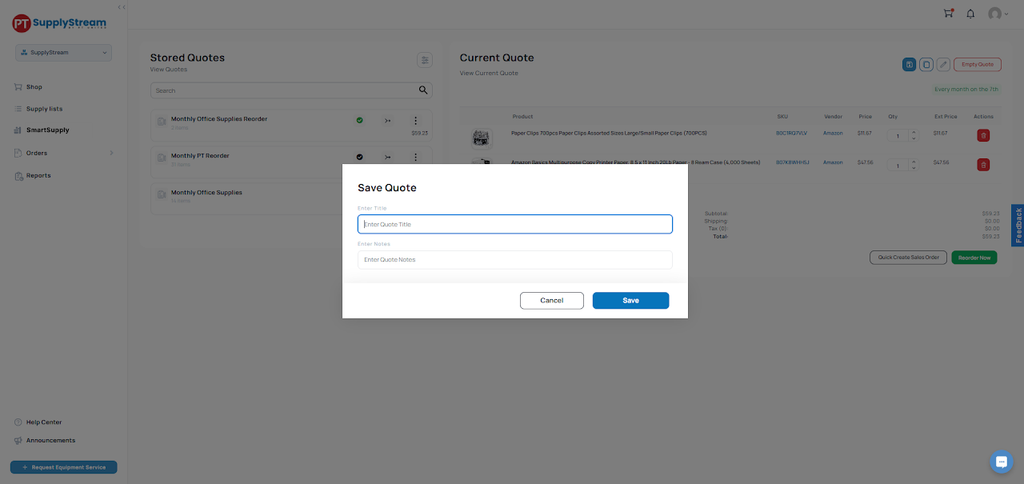
On the Quote page, review the items in your quote and click the Save button (the blue floppy disk icon).
You’ll be prompted to:
- Enter a Quote Name
- Add Notes
Best Practice
Choose a name that clearly identifies the purpose of the order. For example:
- Monthly Breakroom Supplies
- Monthly Office Supplies
- Front Desk Essentials
- Clinic Cleaning Supplies
Using descriptive names makes it much easier to locate your quotes later.
Click Save. Your saved quote will now appear in the Stored Quotes section on the left side of the page.
Step 3: Decide How You Want to Use Your Quote
Once your quote has been saved, you have two options.
Option 1: Use It as a Pre-Built Order
If you prefer to place the order manually each time, you can keep your quote as a pre-built order.
When you’re ready to reorder:
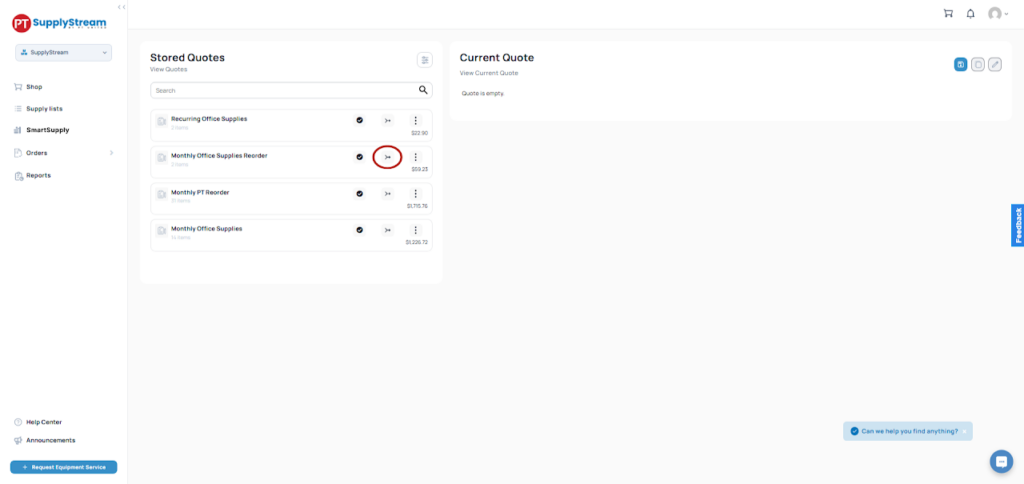
- Locate the quote under Stored Quotes.
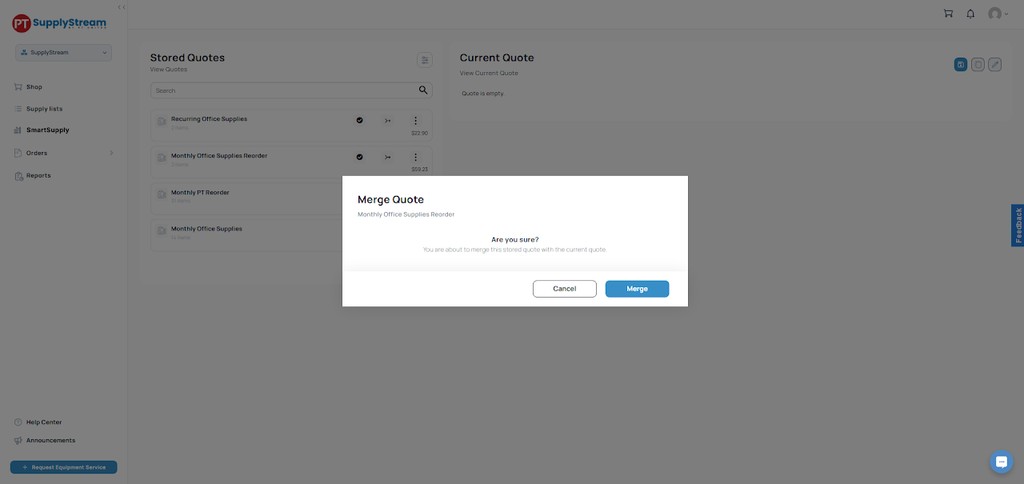
- Click the Merge button next to the quote.
- Confirm that you want to merge your Stored Quote with your Cart / Current Quote.
- All items from the stored quote will be added to your cart, where you can review your order and complete checkout as you normally would.
This option is perfect if you frequently reorder the same products but don’t need them to be placed on a recurring schedule.

Option 2: Schedule Automatic Ordering
If you order the same supplies on a regular cadence, you can automate the process.
To schedule a stored quote:
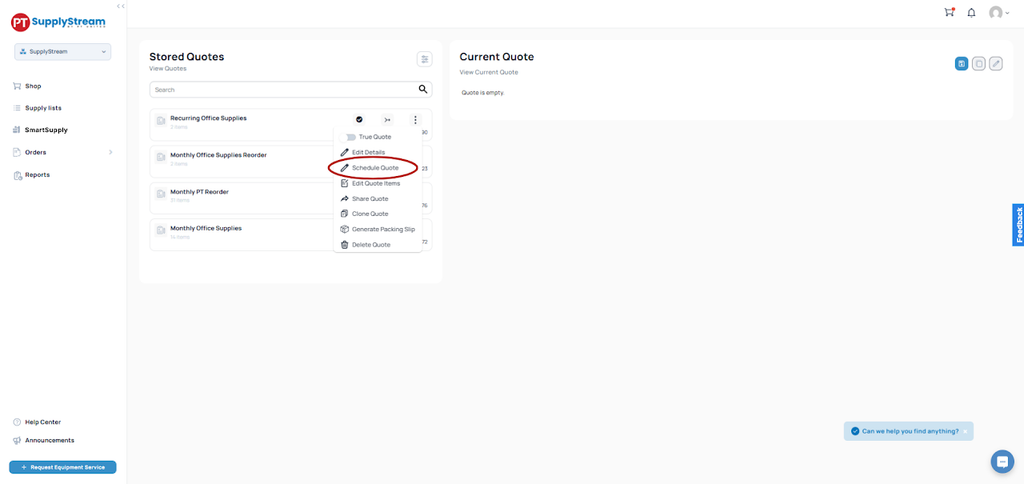
- Locate the quote under Stored Quotes.
- Click the three-dot menu next to the quote.
- Select Schedule.
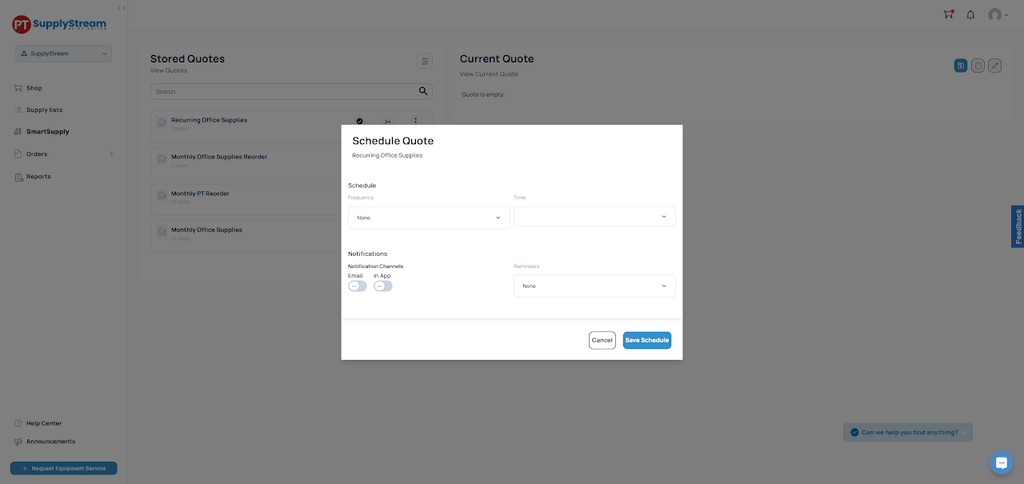
A scheduling window will appear where you can choose your order frequency.
Available Schedule Options
Weekly
- Select the day of the week.
- Choose the order time.
Monthly
- Select the month.
- Choose the day of the month.
- Choose the order time.
Quarterly
- Select the month within the quarter.
- Choose the day of the month.
- Choose the order time.
Recommended Reminder Setting
We highly recommend scheduling an email reminder at least three days before an automated order is placed.
This provides adequate time to review your inventory and cancel or modify the order if your needs have changed.
Managing Your Quotes
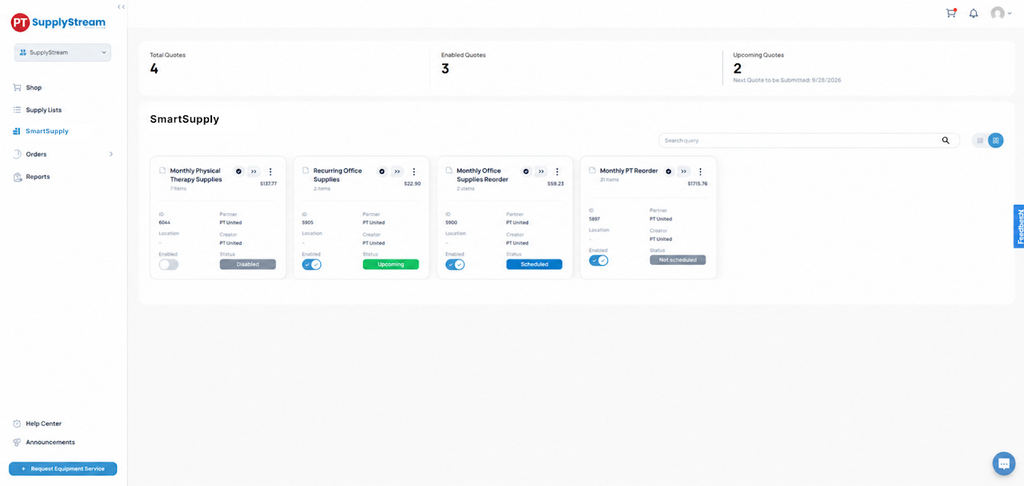
You can manage all of your saved and scheduled quotes from the SmartSupply dashboard.
To access it: Left Navigation Menu → SmartSupply
At the top of the dashboard, you’ll find a summary showing:
- Total Quotes
- Enabled Quotes
- Scheduled Quotes with Upcoming Orders
This dashboard gives you a centralized view of all your reusable and automated quotes. Switch from List View to Grid View to see more details at a glance.
Enabling or Disabling a Quote
Need to pause an automated order? Locate the quote in the Quote Management dashboard and use the Enabled toggle.
- Enabled = The quote is active and can be scheduled to run automatically.
- Disabled = The quote is inactive and will not be placed automatically until it is re-enabled.
Understanding Quote Status
The Status column updates automatically based on each quote’s configuration. Possible statuses include:
- Scheduled
- Upcoming
- Not Scheduled
These statuses provide a quick snapshot of where each quote stands without requiring any manual updates.
Best Practices
To get the most out of SmartSupply, keep these tips in mind:
- Use descriptive quote names so you can quickly identify their purpose.
- Review your scheduled quotes regularly to ensure they still reflect your current inventory needs.
- Set reminder notifications at least three days in advance so you have time to review or cancel an upcoming automated order.
- Disable quotes you no longer use rather than deleting them, especially if you may need them again in the future.
- Periodically review quote contents to ensure products, quantities, and pricing remain accurate.
Save Time with SmartSupply
SmartSupply is designed to simplify recurring purchasing by allowing you to build an order once and reuse it whenever you need it.
Whether you prefer to manually reorder from a saved quote or automate recurring purchases on a schedule, SmartSupply helps reduce repetitive tasks, improve ordering consistency, and save valuable time.
Start by creating your first quote today and let SupplyStream do the repetitive work for you!